Sites 12 / 17
Sections
364 prebuilt Tailwind sections — heros, pricing, testimonials, footers — ready to drop into any page.
Sections
Staring at a blank page is the worst part of building a website — so we removed it. Sites ships with a library of 364 prebuilt, professionally designed Tailwind sections, ready to drop into any page.
What's in the library 📚
Seventeen categories covering everything a marketing site needs:
| Category | What you'll find |
|---|---|
| Heros | Big page-opening sections with headlines, copy, and calls to action |
| Headers | Page-top sections pairing navigation with an opening message |
| Navigations | Nav bars and menus |
| Features | Feature grids, lists, and highlights |
| Content | Text and media blocks for the middle of a page |
| Titles | Section headings to introduce each part of a page |
| Logos | Logo clouds and social-proof strips |
| Testimonials | Customer quotes and reviews |
| Pricing | Pricing tables from single cards to multi-tier grids |
| Call to Actions | Punchy "do the thing" banners |
| FAQs | Question-and-answer lists and accordions |
| Forms | Sign-up, contact, and subscribe forms |
| Teams | Team member grids and profiles |
| Blog | Article lists and post layouts |
| Integrations | "Works with your tools" showcases |
| Footers | Site footers from minimal to mega |
| Coming Soon | Pre-launch and waitlist pages |
What a section is
A section is just a component — a .blade.php file under resources/views/components/sections/ — that renders one visual band of a page (a hero, a pricing grid, a footer). You place it on a page with an <x-sections.…> tag, and its editable copy lives in its @props (and, optionally, a companion .yml for typed inspector fields — see Components). Building a page is stacking these tags.
Inserting a section
Hover between two sections on the canvas and a + Add section pill appears — click it and the new section lands exactly there. (At the layout's edges the pill reads + Add to header / + Add to footer.) The Add Section button in the Sections sidebar tab opens the same popup.
The popup is the whole library — all 364 sections, browsable by category — plus a Community tab with shared designs from the community catalog and a My designs tab that imports your published Designer designs. Pick one and keep building.
Every library section is written entirely in the platform's semantic design tokens (bg-background, text-foreground, bg-primary…) — the same names your site's resources/design.md defines in resources/css/site.css — so it lands already wearing your palette, fonts, and corner radius, and restyles along with the rest of your site whenever you edit those tokens.
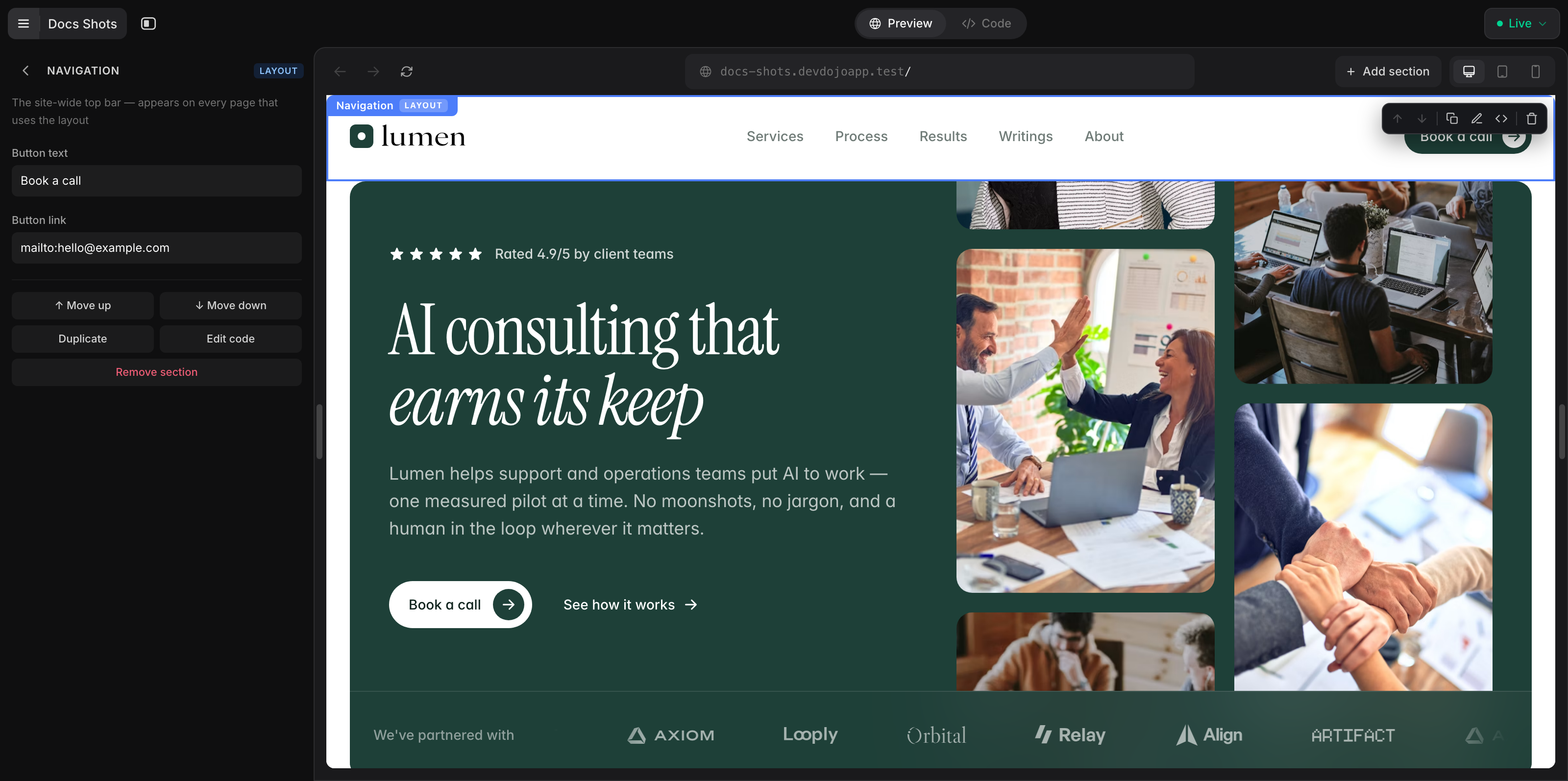
In Code mode a section is whatever markup you put on the page. Keep each section as a component under components/sections/ and drop an <x-sections.…> tag where it should appear:
<!-- resources/views/pages/index.blade.php -->
<x-layouts.main title="Home">

    <x-sections.hero heading="Plan work without the busywork" />
    <x-sections.pricing />

</x-layouts.main>
String attributes carry that page's copy. A section whose data lives in a collection — pricing.blade.php reading resources/data/collections/plans.json as $plans, say — reads it directly, with no attribute at all: collections are global, exactly like $site. Reach for a bound attribute (:items="$plans") only when the same section needs a different slice of data per instance. (More in Components.)
Sections live in .blade.php files — pages, layouts, or components. If you have a collection or asset open when you insert one, the builder will ask you to open a .blade.php file first.
When you insert a library section, its markup lands right on your page as ordinary Tailwind HTML — no hidden wrapper, nothing to detach. It's yours to keep or promote into a reusable component. Because sections style themselves from your site's own design tokens, they arrive already wearing your palette on any site that has defined its @theme tokens — a site built under the design.md mode gets both resources/design.md and its matching tokens from turn one; the platform's default mode defines tokens directly in resources/css/site.css without a separate document. On a template or an older site with no tokens yet, a section still inserts fine — it just renders in a neutral default until your site defines its own.
Making it yours
Sections are plain Tailwind HTML with no strings attached:
- Change the words — swap the headline, rewrite the copy.
- Change the look — they're Tailwind classes; restyle anything.
- Wire up your data — replace a hard-coded card grid with an
@foreachover one of your collections. - Promote it to a component — using the same section on multiple pages? Move it into
components/sections/, add@propsfor its copy, and place it with<x-sections.…>. (Components)
A good workflow
Stack sections to draft a page in minutes: hero → logo strip → features → testimonials → pricing → CTA → footer. Then do a pass to make the words and colors yours. It's the fastest honest way to ship a landing page.
Next up
Sections build a page one block at a time. Want a whole site to start from? Every new site begins with a starter template — complete sites that double as lessons.
The Starter kit
Seventy-five of the library's sections are the Starter kit — five per category (heroes, headers, logos, features, stats, testimonials, pricing, FAQ, CTA, footers, blog, contact, team, newsletter, about), all drawn in one quiet system: white page, hairlines, soft black actions, one accent used sparingly, product screenshots instead of UI drawn in markup. They are listed as "Starter · …" in the Add-a-section popup, and because every one is written against the same core tokens as the rest of the library (bg-background, text-foreground, text-muted-foreground, border-border, bg-primary…), they take on your site's palette the moment they land. Sections that need behaviour — a pricing switch, a logo marquee, a tabbed feature tour, a header's dropdowns — carry their own small script, so nothing else has to be loaded.