Getting Started 02 / 02
Building with AI
Describe what you want in plain language and watch the AI build it — live in the canvas as it works, with one-tap suggestions, a stop button, one-click fixes, and checkpoints you can roll back to at any time.
The builder is a conversation with your app. Instead of writing code line by line, you describe what you want and an AI engineer builds it — while your app runs live in the canvas beside the chat, updating as the work happens. This page shows you how to work with the AI, watch what it's doing, and undo anything you don't like.
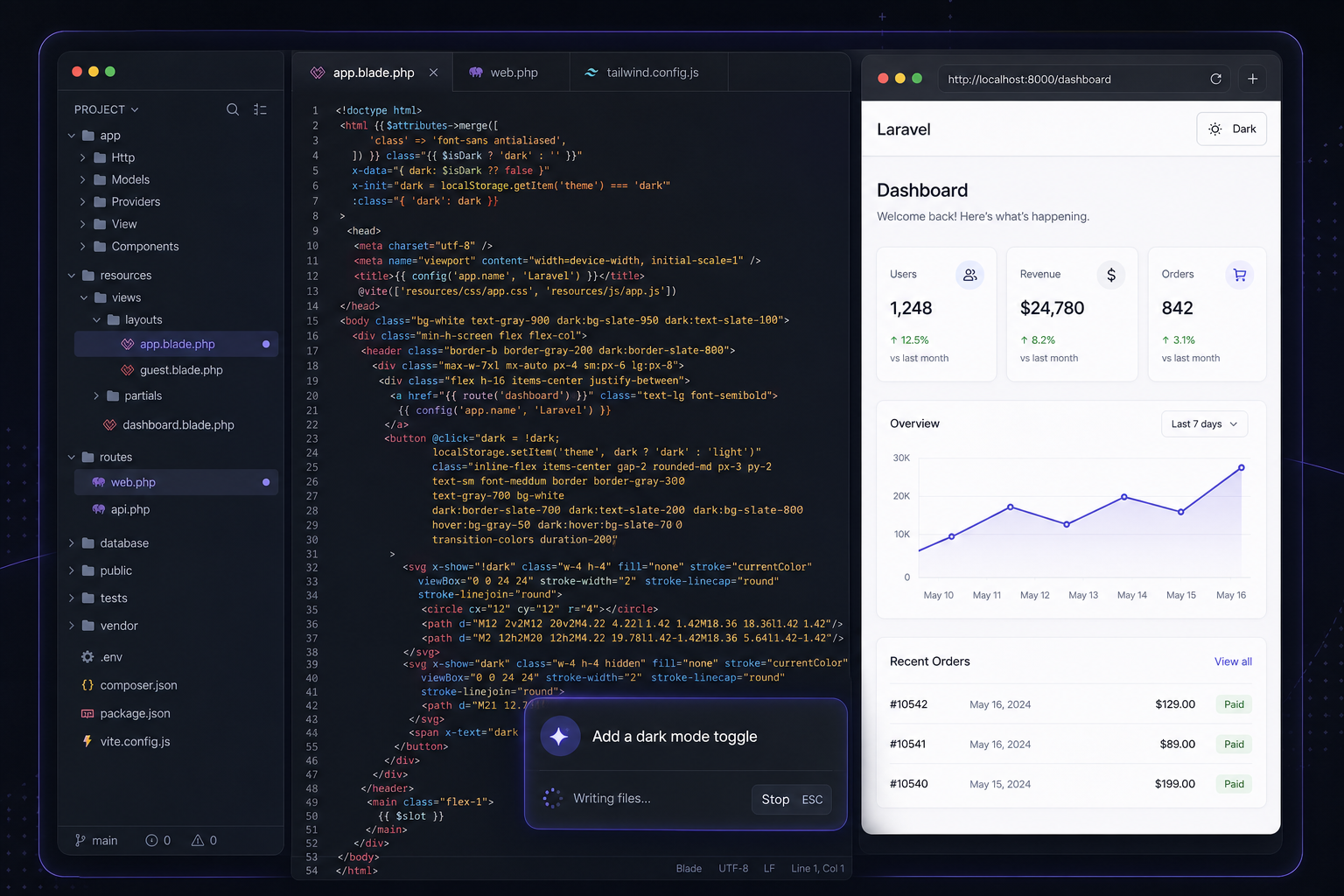
Open any app from your dashboard to land in its builder: the AI chat on the left, your running app on the right, and panels for your files and database a click away.
Created your app from a prompt? The conversation is already going — your idea is the first message, and the AI starts the moment the workspace is ready. Your homepage lands first (watch the header flip from the placeholder to the product name the AI chooses), then it builds the app itself, seeded with sample data so your first look is a working product. Everything below works exactly the same from there.
Describe what you want
Building starts with a conversation. Type your request into the chat in plain English — the more specific you are, the better the result.
- Click into the chat panel and describe a change, for example: "Add a contact page with a name, email, and message field, and show a success message after submitting."
- Press send. The AI says what it's about to do — its words type out live — then gets to work.
- Watch the story unfold: every action appears as a pill that flips from Writing… to Wrote ✓ as it completes, with an elapsed timer keeping honest time.
Tip — Work in small steps. Ask for one feature at a time ("add a pricing page," then "add three plans to it"), review the result, and continue. After every reply you'll also get suggestion chips — two or three one-tap next steps. Tap one and it sends itself.
Watch it happen — live
The canvas doesn't wait for the AI to finish. Files land in your running app the moment they're written, and when a new page is created the canvas navigates to it so you watch screens being born.
- A small Following the build chip (bottom-right of the canvas) lets you pause the steering. Navigating anywhere yourself pauses it automatically — the build keeps running either way.
- Stop is always available in the chat while a turn runs. One click ends the work at the next safe point, and everything finished so far stays — saved, checkpointed, and live in the preview.
See it live
The canvas is your actual app running — not a mockup. Interact with it like a visitor would: click around, fill in forms, register an account. Click the address bar's open icon to use the full-size version at your-app.devdojo.app in its own tab.
If something looks off, tell the AI: "The button is too small — make it larger and blue." It iterates with you until it's right.
Styling is instant. While you build, your app compiles its styles live in the browser — new Tailwind classes, color changes, and full rebrands appear the moment the AI writes them, with no build step. When you publish and deploy your code elsewhere, it automatically uses fast precompiled assets instead.
When something breaks
If a page in the preview hits an error, you won't be left staring at a stack trace: a banner names the problem in plain language and offers Fix it for me — one click sends the error to the AI, which reads it and repairs the page. You can also just describe the problem in the chat, like anything else.
Roll back with checkpoints
Experimenting is safe because DevDojo saves checkpoints as you build. Every AI turn and every manual save becomes a restore point.
- Open History in the top bar to see the timeline.
- If a change makes things worse, restore an earlier checkpoint.
- Your app returns to exactly how it was — and the restore is itself undoable.
This is what makes building with AI feel low-risk: you can be bold, knowing you can always step back.
Keep going
That's the core loop: describe → watch it build live → try it → keep or roll back → repeat. Tap the suggestion chips to keep momentum, and when it's time to make the code fully yours, publish it to your own GitHub from the top bar. To bring in teammates, see teams; to manage your plan and usage, see billing.