Sites 11 / 17
Collections
Put your content in JSON files and loop over it in your pages — add an item, and your page grows a card.
Collections
Collections keep your content separate from your design. Put your data — features, team members, sites, FAQs — in a JSON file, then loop over it in your pages. Add an item to the JSON, and your page grows a card. No HTML surgery required.
Creating a collection
Creating a collection is as simple as creating a .json file inside the resources/data/collections/ directory, containing a list of items:
[
    {
        "title": "Fast",
        "description": "No build step. Ever.",
        "highlight": true
    },
    {
        "title": "Simple",
        "description": "Just HTML and Tailwind.",
        "highlight": false
    }
]
Two rules cover everything:
- The file must be a top-level array (
[ ... ]). - Each item's fields hold text, numbers, or
true/false.
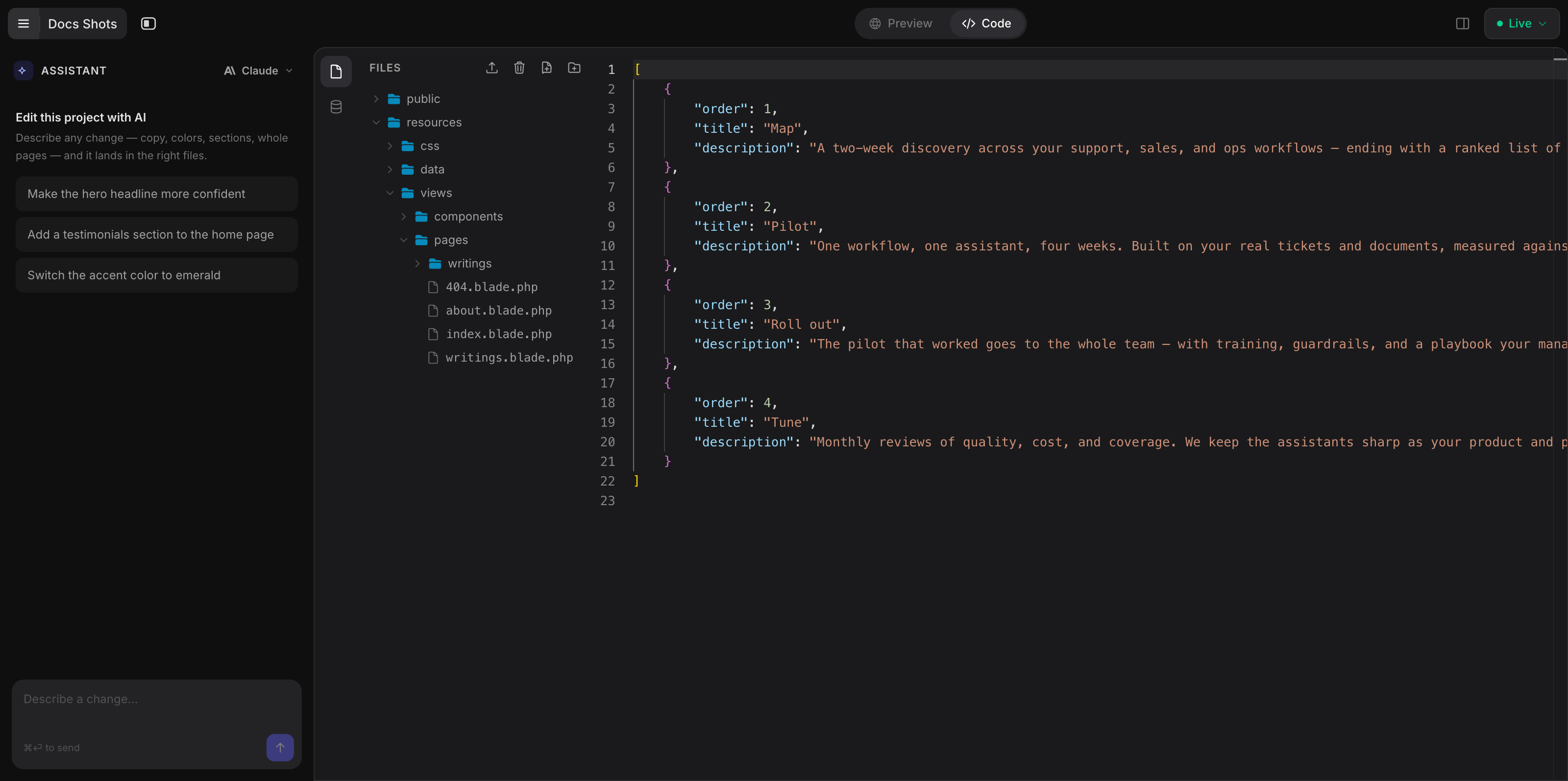
The friendliest way to work with them is the Content surface — the top bar's Content entry opens every collection as a spreadsheet-style grid where you can browse, search, edit entries, add rows, and create new collections. Collections also open in the code editor like any other file — edit the JSON, save, and every page that loops over it updates in the preview.
Each file becomes a variable named after it: resources/data/collections/features.json is $features, available everywhere — pages, layouts, and components — exactly like $site, with no wiring required (see Components). Reach for a bound attribute (:items="$features") only when you want a component to receive a different slice of data per instance, under a name that isn't the collection's own.
Looping with @foreach
Loop over a collection with @foreach, giving each item a name:
<div class="grid gap-6 md:grid-cols-3">
    @foreach ($features as $feature)
        <div class="rounded-xl border p-6">
            <h3 class="font-semibold">{{ $feature->title }}</h3>
            <p class="mt-2 text-sm text-zinc-500">{{ $feature->description }}</p>
        </div>
    @endforeach
</div>
Inside the loop, read a field with the arrow: {{ $feature->title }} pulls the title field from the current item. Items render in the order they appear in the JSON file — want a different order, reorder the JSON.
$loop — the loop helper
Inside any @foreach, a $loop variable tracks where you are. It carries exactly these fields:
| Field | What it is |
|---|---|
$loop->index |
The current position, starting at 0 |
$loop->iteration |
The current position, starting at 1 |
$loop->first |
true on the first item |
$loop->last |
true on the last item |
$loop->count |
Total number of items |
$loop->even / $loop->odd |
true on even / odd iterations |
Great for numbered lists:
@foreach ($steps as $step)
    <p><strong>Step {{ $loop->iteration }}:</strong> {{ $step->title }}</p>
@endforeach
Showing the first N items
There's no count attribute — you cap a loop with @break, which stops it early. Put it as the last line of the loop body to render the first N items and then stop:
@foreach ($sites as $site)
    <div class="rounded-xl border p-6">
        <h3>{{ $site->title }}</h3>
    </div>
    @break($loop->iteration == 3)
@endforeach
This is how a homepage shows "the top 3 sites" while the work page loops the same collection with no @break to show them all — same data, two views. Its sibling @continue skips the rest of the current item and moves to the next; both take an optional condition (@continue($loop->first)).
Detail pages for every entry
A collection can also power a full page per entry — a blog post page for every post, a case study for every site — without creating a file for each one. Name a page [post.slug].blade.php and it serves /post/{slug} for every entry, with $post bound to the matched entry (store the body HTML in a content field and output it with {!! $post->content !!}). In the builder's Content place, HTML fields like that open in a rich text editor — headings, bold, lists, and links, no angle brackets required.
To make the types explicit, give the collection a schema file — collections/posts.yml beside collections/posts.json:
fields:
    title: { type: text }
    link: { type: url }
    image: { type: image }
    content: { type: richtext }
It's the source of truth for the collection's shape: the Content editor renders every column with the right input, and any section that lists the collection picks the types up automatically — no redeclaring the shape per section. See Dynamic pages.
The schema file can also carry the collection's display identity — a label: and icon: at the top level:
label: Posts
icon: 📝
fields:
    title: { type: text }
    content: { type: richtext }
When a dynamic page routes the collection, the builder shows it as a content type under that name: an entries list with drafts and a full-screen writer (see Content types). Draft entries live outside the collection in resources/data/drafts/{name}.json — the engine never reads that folder, so drafts never render, publish, or export.
Conditions with @if
Show something only when a condition holds with @if — and, unlike a lot of simple template tools, you get @elseif and @else too:
@foreach ($pricing as $tier)
    <div class="rounded-xl border p-8">
        @if ($tier->featured)
            <span class="badge">Most popular</span>
        @endif
        <h3>{{ $tier->name }}</h3>
    </div>
@endforeach
@if ($tier->featured)
    <a class="btn-solid" href="#">Choose</a>
@else
    <a class="btn-outline" href="#">Choose</a>
@endif
Conditions support ==, !=, >, <, >=, <=, combined with && (and), || (or), ! (not), and parentheses:
@if ($site->year >= 2025 && $site->featured)
@if ($loop->first)
@if (!$tier->featured)
Comparisons are forgiving in the PHP way: '1' == 1 is true. When a field might be missing, default it with ?? so it never breaks the build: @if (($tier->badge ?? '') == 'new').
Global data: $site
Site-wide facts that aren't a list — your business name, tagline, phone, address — live in resources/data/site.json, a single flat object:
{
    "name": "Harbor & Pine",
    "tagline": "Coffee, slowly.",
    "phone": "(555) 010-2288"
}
It's available everywhere — pages, layouts, and components — as $site:
<h1>{{ $site->name }}</h1>
<p>{{ $site->tagline ?? 'Welcome' }}</p>
Use ?? for any field that might not be set, so a missing value never fails the build.
Markdown content collections
For longer-form content — blog posts, docs, case studies — drop Markdown files into resources/data/content/post/. Each .md file becomes an item in the $post collection, ordered by filename, carrying its frontmatter fields plus two extras: content (the rendered HTML) and link (the item's route). Render the body inline with the raw echo:
@foreach ($post as $item)
    <article class="prose">
        <a href="{{ $item->link }}">{{ $item->title }}</a>
        {!! $item->content !!}
    </article>
@endforeach
Note the {!! !!} — you want the Markdown's HTML rendered, not escaped. (More on escaped vs. raw output in the Syntax Reference.)
List fields
A field can hold a list, like tags:
{ "title": "Ledgerline", "tags": ["Design", "Development"] }
Reach into it by position — {{ $site->tags[0] }} renders Design — or loop it:
@foreach ($site->tags as $tag)
    <span class="chip">{{ $tag }}</span>
@endforeach
Don't echo the whole list. {{ $site->tags }} tries to print an array, which is a build error. Loop it or index into it. When list lengths vary between items, a flat shape ("tag_one", "tag_two") is often simpler than an array.
When something's off
Collections fail loudly, on purpose. The variable exists only when the JSON file does — reference $features with no features.json and the build stops with an error naming the missing variable. A file that's present but has invalid JSON, or that isn't a top-level array, is the usual culprit.
The usual suspect. A stray comma is the classic way to break a JSON file — check for one before anything else.
Need this data in the browser's JavaScript? Handing a collection to client-side JS (for a chart or a live filter) is an app-tier feature — it needs your site running as a full app. For a static site, render the content into HTML with @foreach and let the markup carry it.
Next up
Want ready-made designs to pour your collections into? Browse the Section library.