Apps (Coming Soon) 16 / 32
Social Providers
Allow users to authenticate with many social providers.
Auth supports out-of-the-box social authentication, allowing your users to log in or register using their social media accounts.
Included Providers
The following providers are included by default and ready to use (after adding credentials):
- GitHub
- GitLab
- Bitbucket
- Slack
These are all part of Laravel Socialite. If you want to use additional providers that are not listed above, you'll need to install another package called Socialite Providers.
Socialite Providers Package
Socialite Providers is a third-party package available at socialiteproviders.com. This package includes a ton of providers. You will need to install a package for each provider you want to include. For instance, if you want to use the Apple service provider, you will need to install that package.
After installing the socialite providers you want to use, you can then move on to the rest of the setup.
Setting Up Social Providers
To set up a specific social auth provider, you will need to retrieve two keys for each: the CLIENT_ID and the CLIENT_SECRET. These credentials can be retrieved from each social network, and each network has a different process for retrieving them. We won't go into detail on how to retrieve these keys; however, a search for Setting up OAuth with <network> should surface steps that will help you retrieve each of these.
Add keys to your .env
When you have your CLIENT_ID and CLIENT_SECRET for each social provider, you will need to open your .env file and add those credentials, like so:
GOOGLE_CLIENT_ID=your-google-client-id
GOOGLE_CLIENT_SECRET=your-google-client-secret

FACEBOOK_CLIENT_ID=your-facebook-client-id
FACEBOOK_CLIENT_SECRET=your-facebook-client-secret
The example above is what it would look like to add social authentication with GOOGLE and FACEBOOK.
Visual Indicators
In the setup screen, you will see a list of social providers with key icons next to them:
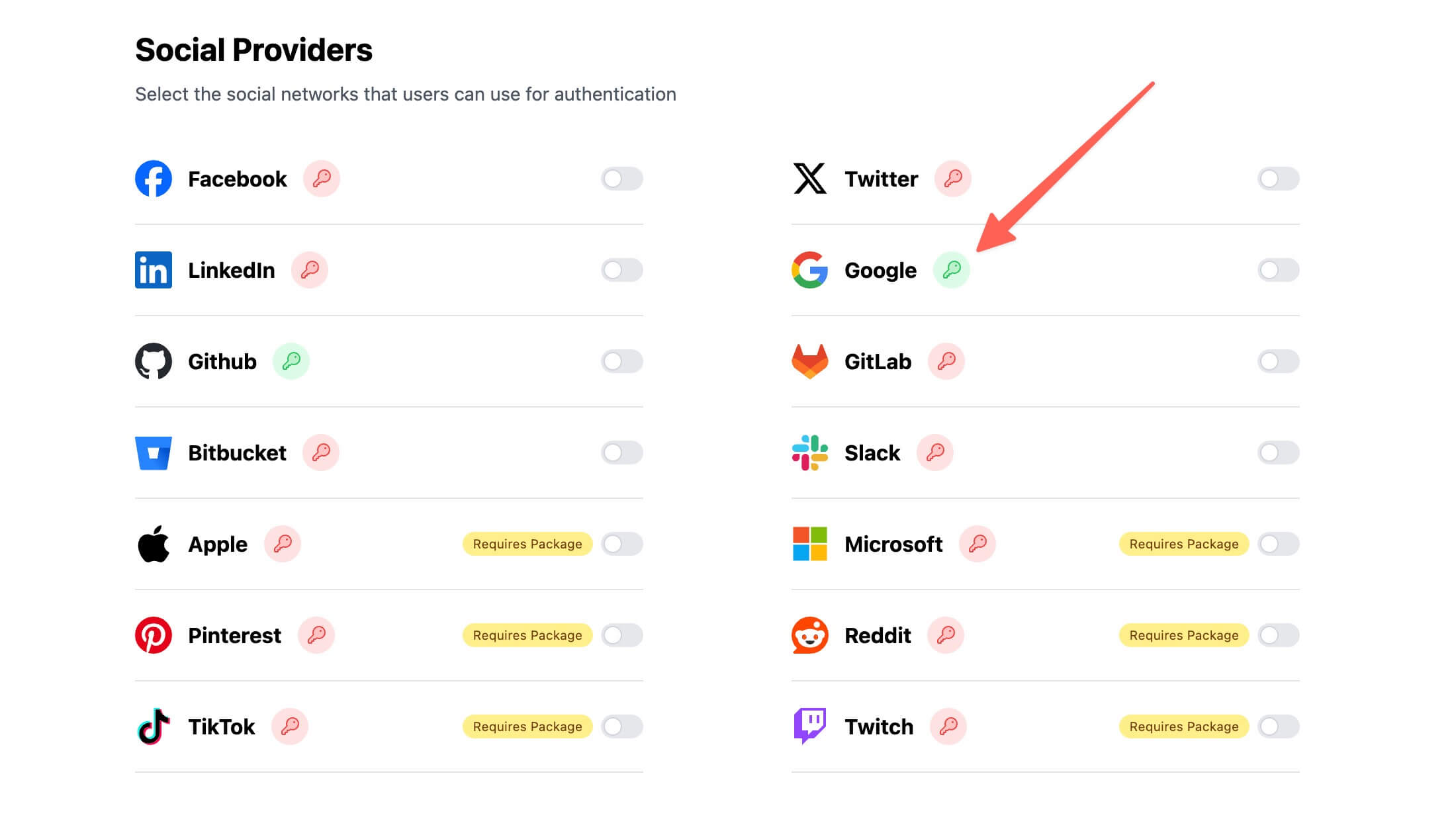
- Green key icon: the
CLIENT_IDandCLIENT_SECREThave been added. - Red key icon: the
CLIENT_IDandCLIENT_SECRETare missing.
Testing Out Social Authentication
After you add the CLIENT_ID and CLIENT_SECRET for the social providers, you'll then be able to toggle that social provider on and see it on the login/register pages.
If everything is set up correctly, you'll be able to click the social provider button and be authenticated with that user/network.
Remember that everything needs to be set up correctly. In the social network's setup page you'll need to make sure your local URLs are included correctly — even an HTTPS/HTTP mismatch can break the social authentication functionality.
Show Social Providers on Login
Inside of your authentication setup page, you will see an option titled Login Show Social Providers. If this is toggled off, the social provider buttons will not be visible by default. If a user then enters an email that's associated with a social network, that network's button will show up in place of the email/identifier input.