
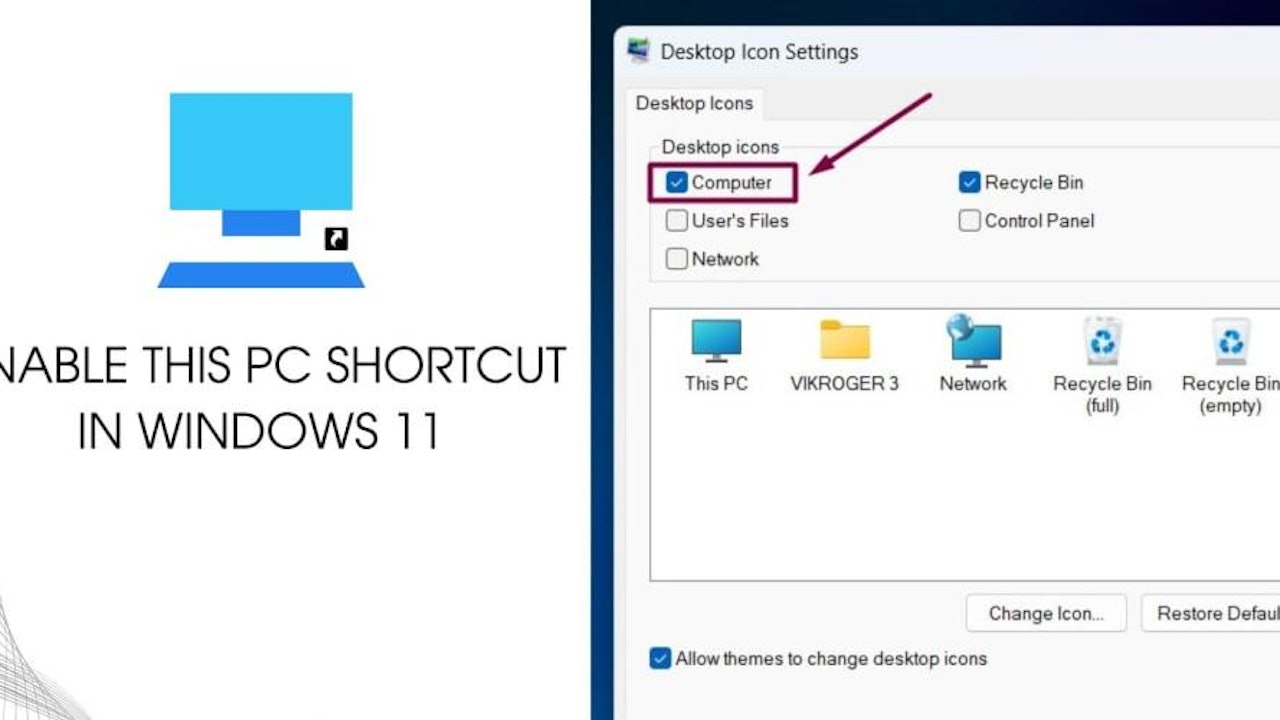
The “ This PC ” shortcut has long been a staple of the Windows desktop, offering quick access to files and system settings. It is one of the most popular and convenient features that users have relied on in earlier versions of Windows. However, Windows 11, by default, does not include this familiar shortcut on the desktop. If you’re missing this handy icon , don’t worry – you can easily enable it and bring back that classic functionality with just a few simple steps.
- Open Windows Settings using Win Key + I.
- Click on Personalization Settings from the left pane.

- Now, click on Themes.

- Under Related Settings, click on Desktop Icon Settings.

- Desktop Icon Settings dialog box will pop up.
- Under Desktop icons, check Computer to enable This PC Shortcut in Windows 11. Finally, click Apply.

- You can find This PC icon created on your Windows 11 Desktop.

- That is it, You can access your Local Disks and more information quickly and easily.
Note: The above steps allows users to create This PC Desktop icon in the Windows 11 desktop rather than creating a shortcut for This PC.
Take away:
So, there you have it – your Windows 11 desktop is now decked out with the trusty “ This PC ” icon, ready to whisk you away to your files and settings with a single click. For more interesting Quirks and Tweaks, stay tuned to winsides.com. Happy Coding! Peace out!
 View Website
 View Website
 View Website
Comments (0)